Intro: Find the settings that use up frames but add little
More frames per second doesn’t have to mean every game looks blurry or bare. The key is to figure out which settings use a lot of your graphics hardware, and selectively reduce those while keeping the details that matter most to you. A few targeted tweaks can often smooth out gameplay without flattening a detailed world.
Start with your screen resolution and the render scale of the game. Native resolution is usually best but reducing the render scale a bit can help a struggling graphics card. If the game has an upscaler like DLSS or FSR, try the Quality setting first, then compare to Balanced. These tools render at a lower internal resolution and then rebuild the image, but results may differ depending on the game, hardware and implementation. NVIDIA
Next up are settings that can be demanding without always adding much of a visual benefit during normal play. Common candidates are shadows , reflections , volumetric lighting , ambient occlusion , and raytracing . Turning things off doesn’t have to be how you reduce them: setting High or Medium might keep the look you want and reduce rendering work. The texture quality is different. It can use a lot of video memory, so lowering it might help if you’re seeing texture pop-in or hitching, but it may not boost average FPS much if the graphics processor itself is the primary bottleneck.
Finally, consider consistency. The frame rate is solid and can feel better than a higher number that bounces up and down from scene to scene. If your display supports variable refresh rate, use the combination of game and display settings that work together on your system. Change one setting at a time and test in the same area so you can see what improves performance and what just lowers visual quality.
This guide has a practical order for tuning graphics, upscaling and frame pacing – and not based on one size fits all presets.
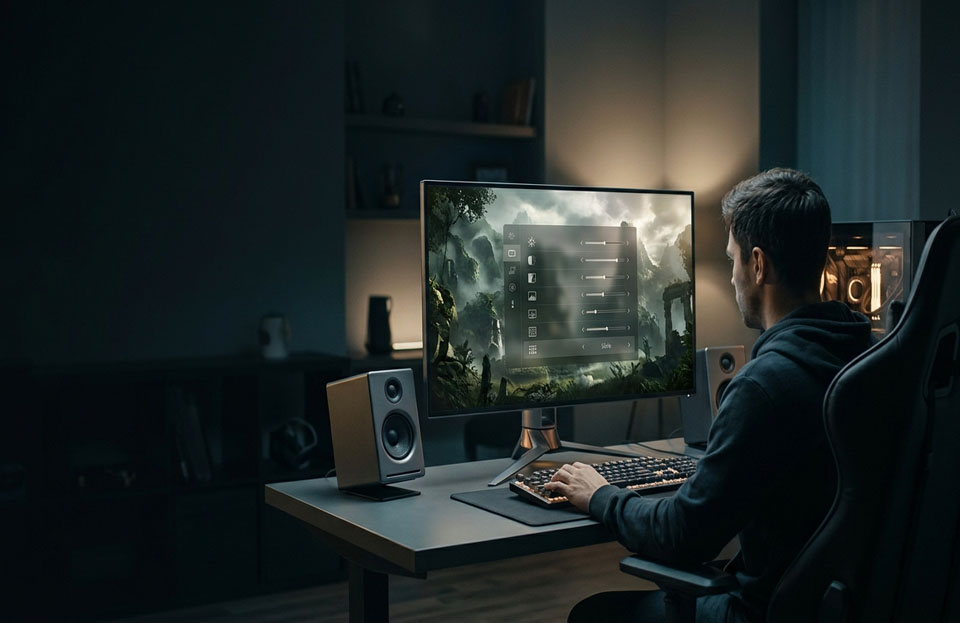
Step by Step Tune Image Quality and Performance
Establish a baseline. Use a built-in benchmark or a repeatable area in the game. Make a note of the average FPS and if FPS drops during heavy scenes. If they have it , watch for frame time consistency as well as average FPS . Frequent spikes can make a game feel uneven even when the average looks ok .
“Try to upscale before a big resolution drop. Start with Quality mode if the title supports DLSS, FSR, or another upscaler. Check sharpness of image when in motion, especially around foliage, thin objects and moving characters. If you still need a performance boost, try Balanced mode. Which upscaling is supported and what modes are available depends on the game and the hardware, and what looks best can differ. NVIDIA
Selectively reduce costly effects. Test ray tracing, shadow quality, reflections, volumetric fog, ambient occlusion one by one. Keeping textures down to what your video memory can handle will usually keep surface detail intact. If you see hitching or delayed texture loading, try reducing textures one step. Anti-aliasing can smooth out jagged edges, but it can cost performance. Check the available modes and don’t assume the highest is best. AMD’s settings guide says that image quality features, such as anti-aliasing, can impact FPS. www.amd.com
Set a reasonable target frame rate. If your PC can’t keep up with the display’s maximum refresh rate, try capping it at a rate it can hold more consistently. A cap could help reduce distracting swings . The ideal number depends on the game, monitor, and if you use variable refresh rate . NVIDIA Reflex is a latency reducing feature for competitive play (in supported games). It doesn’t affect image quality, just responsiveness. NVIDIA
Re-run the same section and compare after each change. Improve crispness where it makes the image look better, and undo anything that looks worse without a noticeable performance benefit.
Balance It Out: Clean Frames, Clear Images, Dependable Settings
There is no one “best” preset. A fast competitive shooter, a cinematic adventure and an open world game all have different demands on a PC, so tune each title separately. If your game is already running fine at native resolution, chances are you may prefer richer shadows or reflections. If there are fights or crowded scenes and drops occur, drop one or two expensive effects to improve consistency and keep most of the image.
Watch out for frame generation. It can make motion look smoother on the screen in supported games . However , generated frames are not the same as frames rendered directly in response to input . Compare the game with frame generation off if controls start to feel less immediate in fast competitive play. Upscaling and frame generation are two separate features, so test them independently when the game allows for it.
It may also depend on the display settings. Make sure Windows and the game are set to the monitor’s intended refresh rate. If you’re using a variable-refresh-rate display, enable the feature only where the monitor, graphics hardware, and game support it. Windows 11 also includes Optimizations for windowed games for supported DirectX 10 and 11 titles in windowed or borderless mode. Microsoft says it can reduce frame latency but it’s not a guarantyd benefit for every game. Microsoft Support
You should update your graphics drivers using the PC or GPU manufacturer and not change several driver level options at the same time. Global overrides can make one game look or feel worse despite them helping another. Jot down your current settings so you can easily revert any changes.
A good tuning routine is simple: set a baseline, adjust upscaling, turn down the most demanding effects, pick a stable frame-rate target and test again. Prioritize settings that actually change your experience. Higher FPS is good, but the best part is the combination of smooth motion, responsive controls, and image quality you like.
Frequently Asked Questions
What graphics settings can I turn down to get more FPS?
Play with ray tracing, shadows, reflections, volumetric effects and ambient occlusion. Change one at a time, performance costs vary by game.
Will upscaling make games look blurry?
It can depending on the mode, game and hardware. Start with Quality and compare motion scenes before trying a more aggressive setting.
Reduce texture quality for better FPS?
Only if your graphics card is low on video memory, or you start to see hitching and texture problems. If the GPU is the main bottleneck, lowering textures might not help much in average FPS.
Does frame generation equal more native FPS?
No It displays extra frames in games that are supported. Motion may feel smoother, but responsiveness may feel different, so test it for your specific game.
Should I cap my FPS?
This can help smooth out your frame delivery if your PC is struggling to maintain a higher rate. Pick a target your system can hold and see how it feels.compare how it feels.