Intro: Get Smoother Gaming on the PC You Already Own
Sometimes a low-end PC doesn’t need a costly upgrade to feel better in games. Tweaking a few settings, shutting down background tasks, and making sure the computer is using the correct graphics processor can increase frame rates or reduce stuttering. The gains are dependent on your hardware and on the game so there is no universal setting that will make all titles run smoothly. Working carefully and step-by-step will help you find what works on your system.
Look at the game’s minimum system requirements and compare them to your PC’s processor, graphics hardware, memory and available storage. If a game is way outside of those requirements, changing settings might help a little. Also, don’t associate low frame rates with other problems: Stuttering can be caused by background activity or heat, and lag in games played online may not be graphics performance at all.
The simplest place to start is with the game’s video menu. Choose a low preset, and reduce the resolution or render scale. Also, reduce demanding options such as shadows, reflections, ambient occlusion and anti-aliasing. Look for an upscaling option (e.g. FSR) in the game settings and try it, comparing image clarity and smoothness. One change at a time so you can see what difference it makes.
Sometimes Windows settings can assist. Windows 11 has an optimization for windowed games on supported DirectX 10 and 11 titles, and Microsoft offers a per-app graphics preference for systems with multiple GPUs. Performance can also be impacted by power mode and background apps, especially on laptops. Microsoft Support
Here are practical steps, in a sensible order, from in-game settings to Windows and laptop power options. It also includes how to test changes and what not to do. The goal here isn’t to turn a budget PC into a premium gaming machine, but to squeeze the smoothest and most stable performance possible out of your hardware.
Settings and Things to Try First
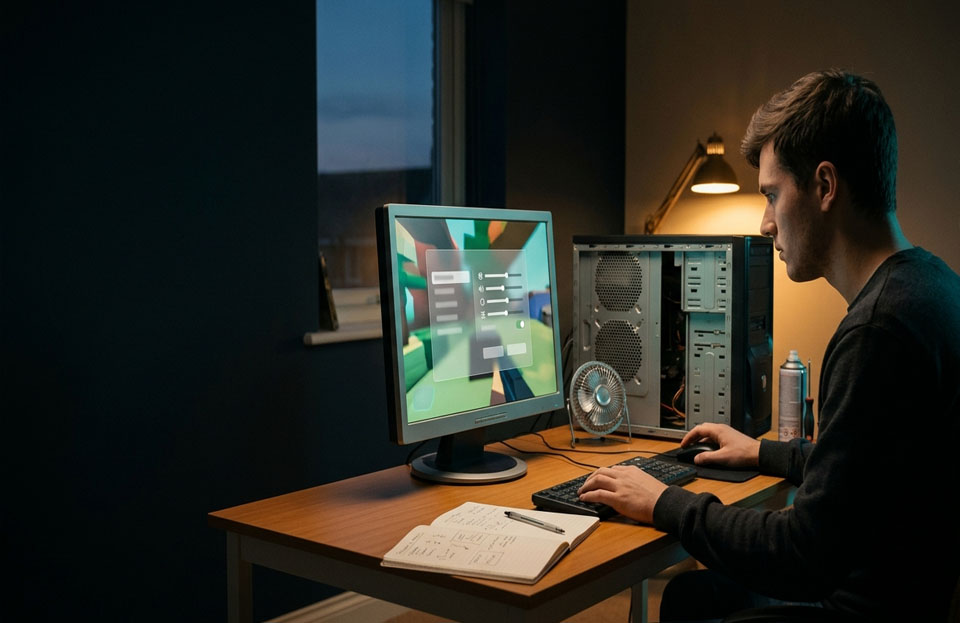
1. Slash the largest performance costs in the game. Start with the Low preset, then tweak the resolution, render scale, shadows, reflections, volumetric effects and anti-aliasing. These options can affect frame rate differently depending on the game, so try dropping them one by one and see what happens. If the game has FSR or another upscaler, give it a go: the game will draw at a lower resolution and then enlarge the picture, which can boost performance but hurt picture quality somewhat. amd.com
2. Choose the right graphics processor. If your laptop has integrated and dedicated graphics, Windows may allow you to force a game to use the high-performance GPU. Settings → System → Display → Graphics → Choose your game → Options → Choose High performance (if available) Change the scene and start the game again. Exactly how it behaves depends on the design and manufacturer of the computer. Microsoft Support
3. Limit background activity. Close browsers, launchers, downloads and other apps that you don’t need while playing. In Task Manager, look at the Startup apps. Turn off only the ones you know and don’t need to start automatically. Microsoft says startup and background apps use up system resources, so don’t kill unknown processes just to free up memory. Microsoft Support
4. Update Graphics Drivers With Caution. Look for compatible updates on Windows Update or your PC maker’s support page. If you have a laptop (switchable graphics) the validated driver from the manufacturer might be your safest bet. Intel warns that generic drivers might not work with every system configuration. intel.com
5. Test changes thoroughly. Use the same game area or built-in benchmark before and after any adjustments. Look for smoother frame pacing and average FPS as well. If one of the adjustments makes the picture too blurry or results in instability, return to the previous setting.
Enhance Stability Then Decide If Upgrade Is Needed
If you play on a laptop, plug in the charger before gaming and check the Windows Power & battery settings. Best performance mode can be useful if you have extra power to spare, but it uses more power and may make a laptop run warmer. To extend battery life, the computer might limit performance on battery. intel.com
The Windows 11 setting called Optimizations for windowed games might lower frame latency in windowed or borderless mode for supported DirectX 10 and 11 games. This isn’t a blanket boost for all games so give it a try with the game you play and turn it off for that game if you have problems. Microsoft Support
Have realistic expectations. Lowering graphics settings can help performance but it won’t make up for hardware that’s below a game’s minimum requirements. If a game is still unstable, look for a patch, verify files through the launcher, and check free storage on the system. Avoid ‘FPS booster’ utilities, registry edits and random driver downloads, which can create new problems and offer no reliable gains.
If you are thinking of upgrading, first find the bottleneck. If you have limited memory you may experience hitching with many programs open, a weak graphics chip can limit your visual settings and an older processor can hold back frame rates in CPU-heavy games. Integrated graphics systems may also benefit from dual channel memory depending on the device and upgrade options. Microsoft Support
Should I use an FPS booster app?
Watch out. Many third-party “boosters” make vague claims or change system settings without proven benefit. Instead start with Windows and in-game options.
Why do my games run better on my laptop when it is plugged in?
Many laptops throttle power on battery to get better battery life. You are able to set your Windows power mode to “performance” when plugged in, but it may generate more heat and consume more power.se. Microsoft Support