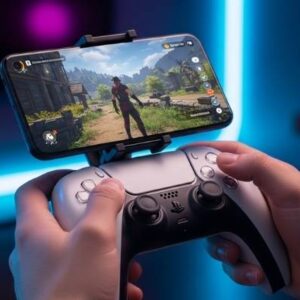
The PS5 controller’s compatibility with Android opens up new possibilities for mobile gaming. Using the PS Remote Play app, you can use your PS5 controller on an Android smartphone or tablet. You can also connect the controller to your device wirelessly by using Bluetooth. To set up the connection, first make sure that your Android device is updated to version 12 or later.
How to Connect
If you have a PlayStation 5 controller with Bluetooth capability, it can be connected wirelessly to your Android device. On your controller, hold down the PS and CREATE buttons (located to the left of the touchpad) until the light bar flashes, indicating pairing mode. Enable Bluetooth on your phone or tablet, and select the controller from the list of available devices to establish the connection. When the light bar becomes steady, the controller is connected and ready to use.
In addition to a standard Bluetooth connection, the PS5 controller can also be connected to an Android device using the PS Remote Play app. Download the app and follow the instructions to connect to a PS5 console linked to your PlayStation Network (PSN) account. You can then control your PlayStation games on the Android device or Smart TV.
Bluetooth
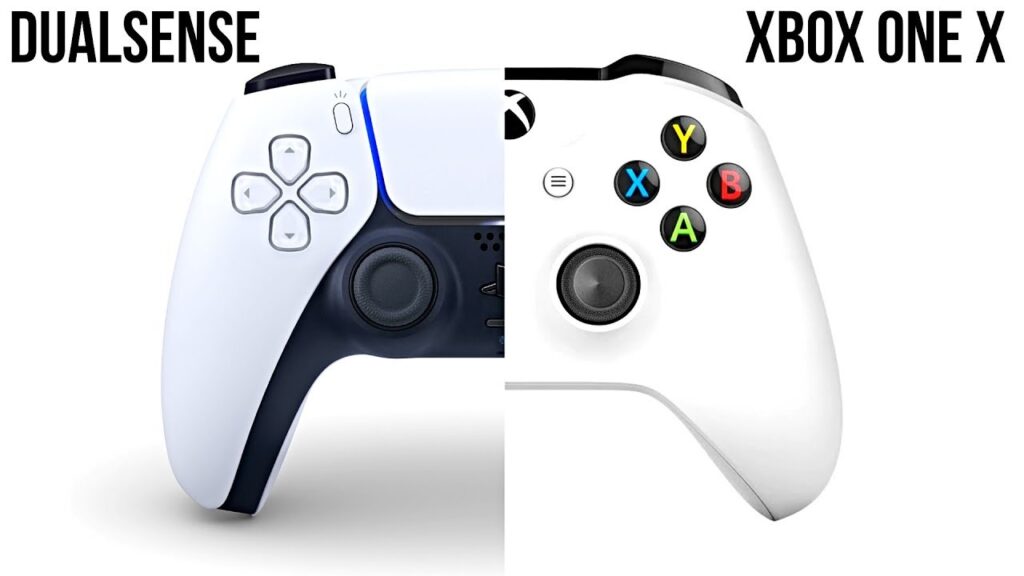
A wireless PS5 controller can connect to an Android device over Bluetooth. To set up a Bluetooth connection, ensure both the controller and your device have the latest system updates installed. The controller must also be unpaired from any previous pairings to start a new connection. The controller’s light bar and player indicator will blink when starting a new Bluetooth pairing. To enable Bluetooth on your device, open the Settings app and tap the Bluetooth icon. Select the controller from the list of devices and follow the on-screen instructions to pair.
The controller can be connected wirelessly to an Android phone or tablet running the PS Remote Play app, which streams games from a PlayStation console to an Android TV or mobile device. After enabling Bluetooth on your device, open the PS Remote Play app and follow the on-screen instructions to connect your Android device to the controller.
USB
You can use a USB cable to connect your controller to an Android device that supports PS Remote Play, including some tablets and Smart TVs. Ensure that your tablet or TV has an active Internet connection and is running the latest version of the Android operating system. Download the “PS Remote Play” app from the Google Play Store and follow the instructions to enable it. You may need to restart your device after the application has installed and enabled remote play.
A PS5 controller can also be connected to an Android device wirelessly, assuming that your Android device supports Bluetooth and that it is linked to your PlayStation Network (PSN) account. You can connect wirelessly by connecting the controller to your Android device via a USB cable and enabling the Bluetooth functionality on both devices. Once the connection is established, you can use your controller to play games streamed from your PS5 console to your tablet or Smart TV.
A standard USB cable can extend up to 16 feet. However, a passive USB cable that exceeds this length can result in loss of data packets and eventually complete failure to transfer files. Active USB extension cables have repeaters in them that help to maintain the signal over longer distances. Another USB connectivity option is Media Transfer Protocol (MTP), which was designed by Microsoft to allow higher-level access to a device’s storage media at the file level instead of disk blocks. This has been adopted by Android as the primary storage access protocol since 4.1 Jelly Bean and is used by the Zune mobile media player.
DualSense
You can use a DualSense controller on devices with the operating systems listed below, but certain features might not be available. For example, haptic feedback is supported on Windows PC when supported by the game, and adaptive triggers are supported on Windows PC but aren’t compatible with mobile devices or Mac computers.
To connect your controller to a device, enable Bluetooth on the device and find your controller in the list of available devices. The light bar on the controller flashes to indicate pairing mode, and the player indicator on the controller turns off. Once the controller is paired, it remains paired with that device until you pair it with another one.
If you want to use your controller with a different device, you need to reset the connection. To do so, press and hold the PS and Create buttons (to the left of the touchpad) simultaneously until the light bar flashes. Then pair it with the new device, following the steps above.
Using an Android device to play games with a PS5 controller opens up the possibility of playing many popular console titles on your mobile phone or tablet, and specialized gaming accessories can make the experience even better. Before getting started, however, it’s important to ensure that the device you’re using is compatible with PlayStation controllers and has the latest version of Android. Then follow the tips in this article to establish a stable connection between your controller and your Android device.